
preparation (1-2 weeks before), the export day itself, and verification (first 1-2 weeks after). Key non-negotiables are checking your file stays under 4,000,000 targets, backing up before you start, completing the export within 60 days of your QuickBooks Online start date, and comparing reports afterward before retiring your old file.
Printable Checklist: Before Migration
Timeline: 1-2 weeks before your planned migration date
Confirm your QuickBooks Desktop file is under 4,000,000 targets (check via F2 or Ctrl+1)
Update QuickBooks Desktop to the latest release
Create a full backup of your company file
Print or save key reports as of your cutover date: Balance Sheet, Profit & Loss, AR Aging, AP Aging, and reconciliation reports
Export custom templates, memorized report settings, and attachment copies manually, since none of these transfer automatically
Clean up duplicate customers, vendors, and accounts
Decide your QuickBooks Online plan level (Plus or Advanced if you need inventory)
Check whether your company uses multicurrency, and confirm handling directly with Intuit if so
Assign who's responsible for the migration, who verifies the data, and who handles rebuilding templates and reports afterward
Tell your team the exact cutover date, so no one enters new data in Desktop right before or during the export
Printable Checklist: Migration Day
Timeline: 30 minutes to several hours, depending on file size
Sign in to QuickBooks Desktop as Admin
Confirm you're in single-user mode
Go to Company > Export Your Company File to QuickBooks Online
Connect or create your QuickBooks Online account, and select the right subscription plan
Review the export summary before continuing
Start the export and leave your computer on and QuickBooks Desktop open until it finishes
Note the time the export completed, for reference if any timing questions come up later
Printable Checklist: After Migration
Timeline: First 1-2 weeks after the export
Compare Balance Sheet totals in QuickBooks Online against your saved Desktop report
Compare Profit and Loss for the same period
Match open invoices and bills against your saved AR/AP aging reports
Check customer and vendor lists for duplicates or gaps
Verify inventory quantities and values, remembering QuickBooks Online uses FIFO only, regardless of your Desktop method
Rebuild custom templates, your logo, and memorized reports directly in QuickBooks Online
Reconnect bank feeds for every account
Re-upload important attachments
Double-check payroll history figures if applicable
Set up users, permissions, and preferences fresh in QuickBooks Online
Run a short parallel period if your file is complex (entering transactions in both systems briefly to compare)
Archive your Desktop file and backup; don't delete them
Estimated Timeline at a Glance
1 Phase Typical Duration Preparation
2 weeks The export itself Minutes to several hours Verification
3 weeks Parallel run (optional, complex files)
4 weeks additional A straightforward small business file can realistically go from start to fully verified in about 2-3 weeks when each phase is given proper attention, rather than rushed through in a single afternoon.
Who Should Be Involved
For a small, simple file, one person can usually handle this checklist alone. For anything larger, consider splitting responsibilities:
Someone to run the export (needs Admin access to Desktop)
Someone to verify financial reports (ideally your bookkeeper or accountant, who'll spot discrepancies fastest)
Someone to rebuild templates and reconnect bank feeds (can be handled separately from the financial verification)
Having more than one set of eyes on the verification step specifically catches mistakes that a single rushed reviewer might miss.
The Three Things Most People Skip on This Checklist
Saving reconciliation reports before migrating. These don't transfer, and most people only remember this after they've already switched.
Setting a firm cutover date and communicating it. Without this, someone inevitably enters a transaction in the old Desktop file after the export has already run, creating a mismatch to untangle later.
Actually comparing reports afterward, rather than just checking that QuickBooks Online opened and looked roughly right.
Frequently Asked Questions
What's the single most important item on this checklist?
Backing up your company file before you start. If anything goes wrong during the export, this is your only safety net.
Can I complete this entire checklist in one day?
For a small file, possibly, but rushing the verification phase is where most post-migration problems come from. Spreading it across a week or two is safer.
Do I need an accountant involved for this checklist?
Not required, but having someone familiar with your reports review the post-migration comparison step significantly reduces the risk of missing an error.
What happens if I skip the "before" checklist items?
You risk discovering your file is too large to migrate, or losing templates and reports permanently, only after the export has already happened.
Is this checklist different from a general conversion process guide?
This version is meant as a quick, scannable reference you can print and follow step by step, timed by phase, rather than a detailed explanation of each step.
Final Thoughts
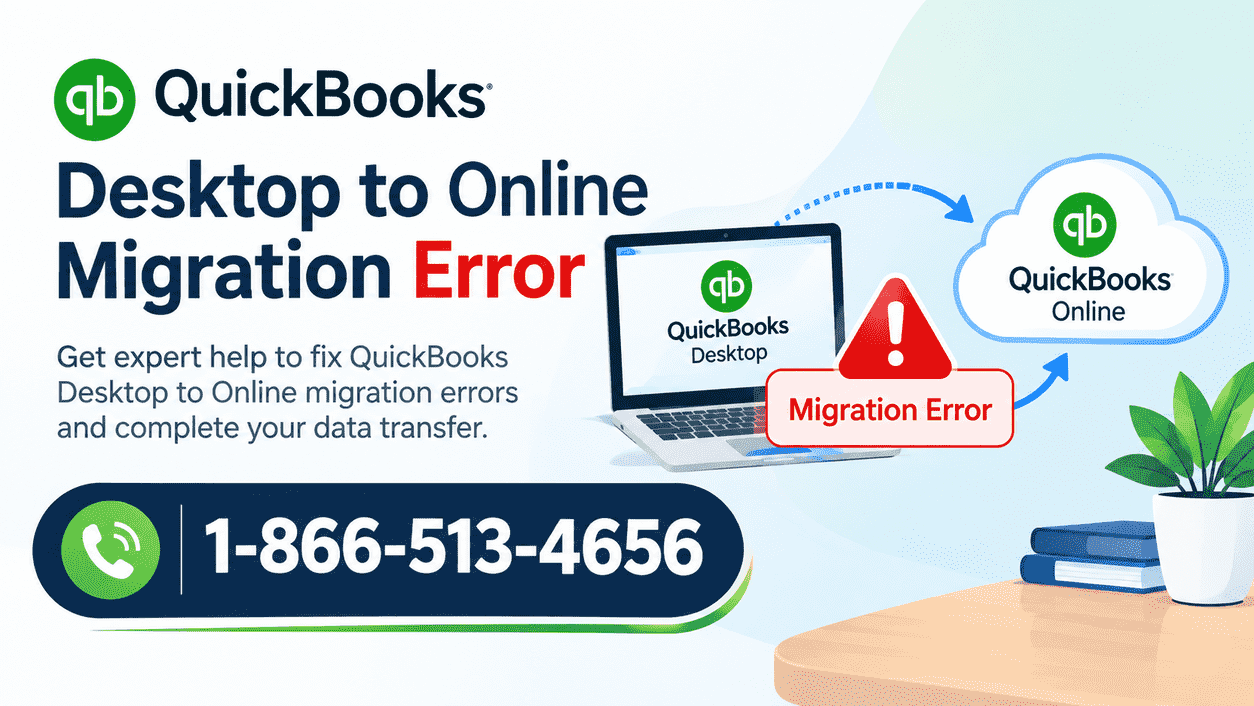
A QuickBooks Desktop to Online migration checklist works best when it's treated as a timed, multi-week process rather than a single afternoon task. Prepare a week or two ahead, run the export carefully on the day itself, and give yourself real time afterward to verify everything before retiring your old Desktop file for good.
Want help running through this checklist for your specific company file? Contact the BooksMerge team for hands-on support with your migration. Call 1-866-513-4656



Write a comment ...